 Cowork Cookbook
Getting started
Your first Cowork task in five minutes
Every prompt here is the original from the Cowork training deck. You run it on your own work data, using the access you already have — there is nothing to download.
Preview — real Cowork captures and reviews still pending
Not a verified training release. The deck’s prompts and workflows have not yet been run in this environment. Authentic screenshots, translation review, and model approval are still required.
1. What is Copilot Cowork?
Microsoft 365 Copilot Cowork takes on multi-step work for you. You describe the outcome you want; Cowork gathers context from the Microsoft 365 apps and business systems you already have access to, works through the stages, and hands back a review-ready deliverable — a brief, dashboard, asset package, or report. (It is not Claude Cowork or GitHub Copilot.)
Before anything else
Do you have Cowork? Check in one minute
Open Microsoft 365 Copilot and look at the left navigation. Match what you see to one of these four screens.
1. Finding Cowork: the toggle
Open Microsoft 365 Copilot. The Cowork toggle sits at the top of the left navigation, next to Home. Select Cowork to switch into the experience.
You see the toggle → continue to 2 or 3.
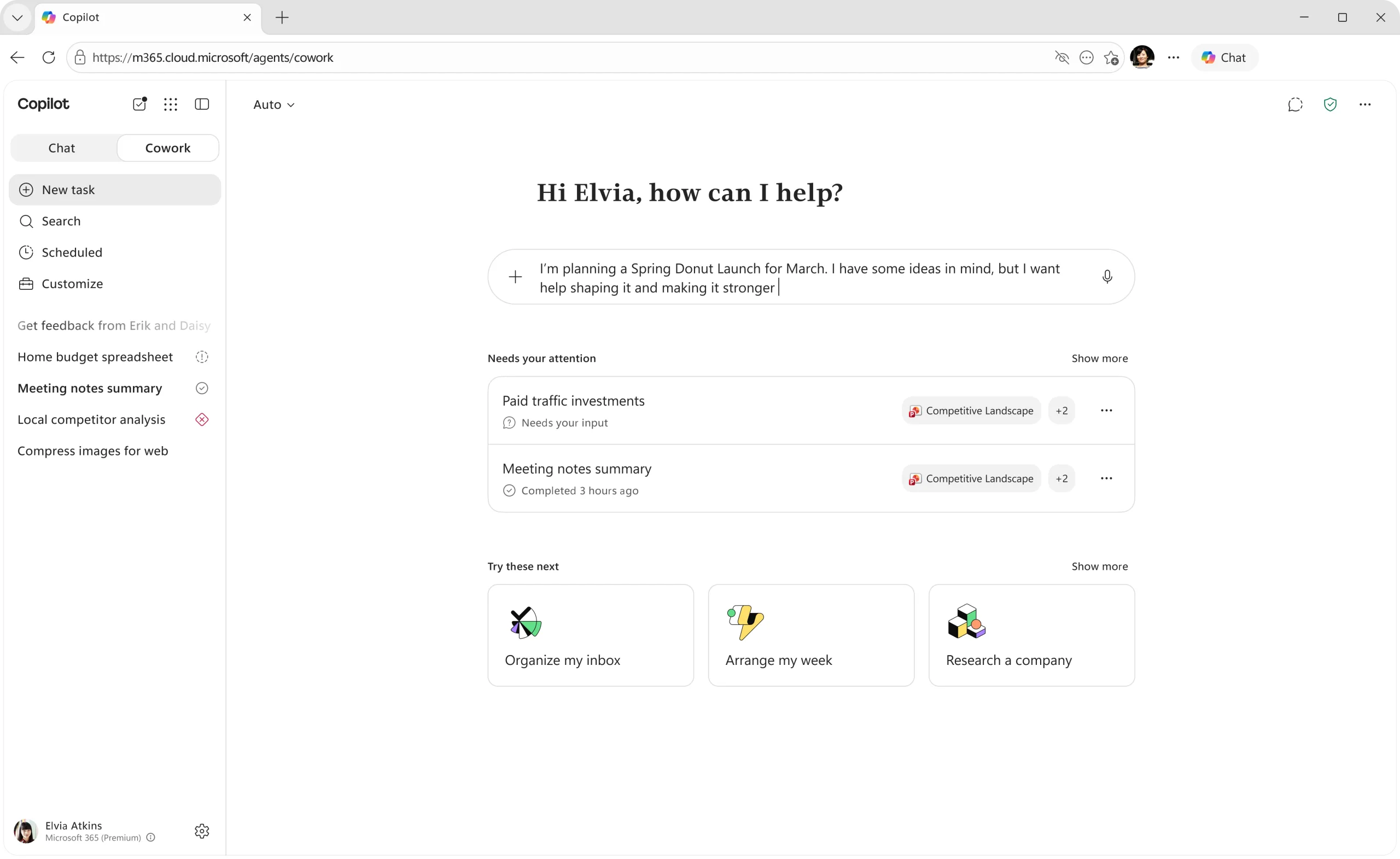
2. When Cowork is ready for you
Selecting it opens your personalized homepage with suggested tasks based on your recent work. You are ready — pick a recipe and start.
✓ You have Cowork access.
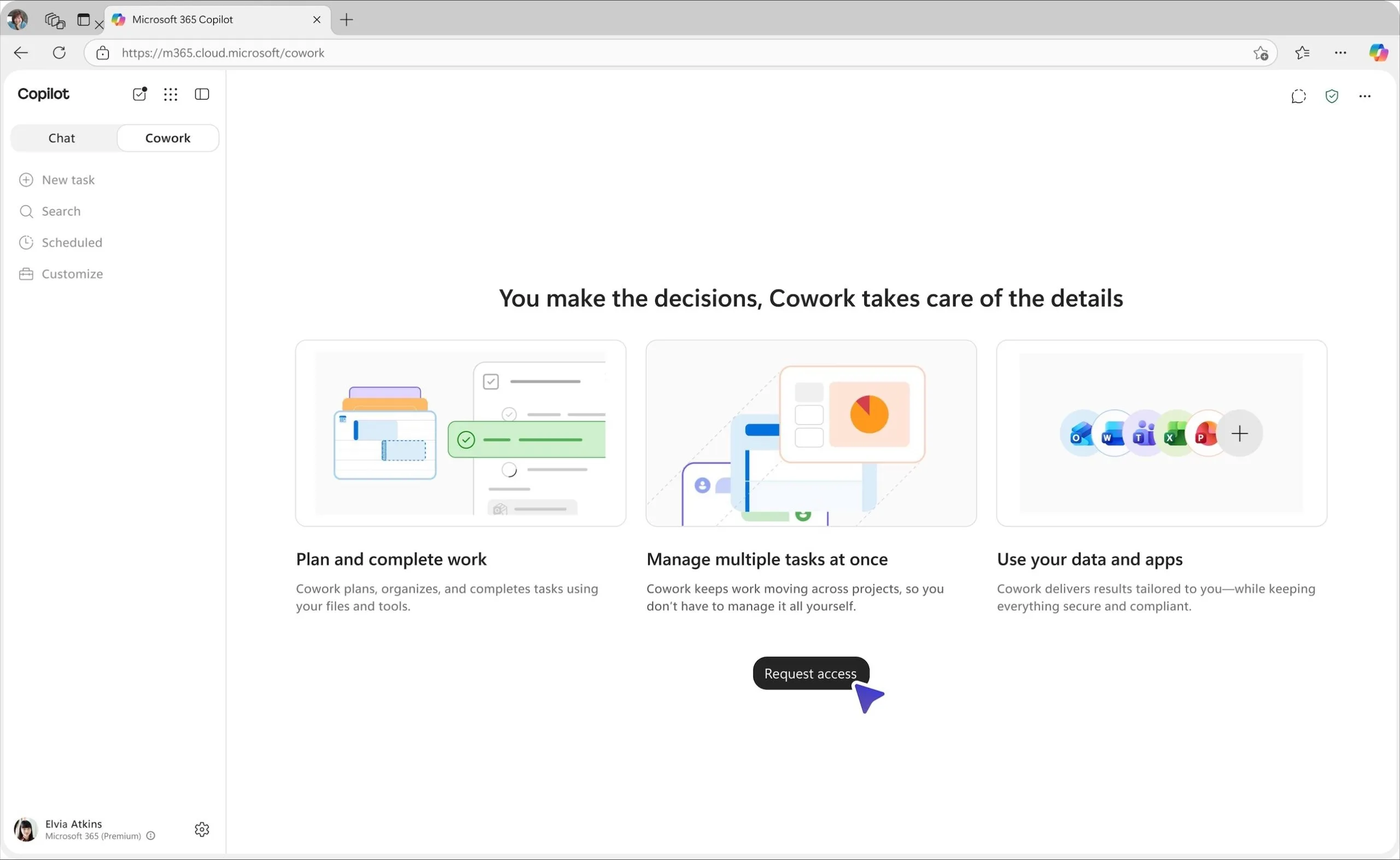
3. When you need to request access
If you can see the toggle but Cowork isn’t switched on for you yet, selecting it opens a short overview with a one-click Request access button. Once your request is approved, you’re ready to go.
Select Request access, then wait for approval.
4. When you reach a usage limit
If you reach your usage limit, select Request more to ask for more credits. When your admin approves, you are notified in the product and by email.
Select Request more, then wait for your admin.
Don’t see the Cowork toggle at all? Contact your IT admin to get access — they control who can use Cowork.
Images and animations: Microsoft Adoption — adoption.microsoft.com/copilot/cowork
2. What you need
Requires the relevant Microsoft plugin, approved connector, agent, API, local-browser path, or governed export. Availability depends on tenant configuration, permissions, region, and source-system controls. Cowork acts only within the signed-in user’s authorized access.
3. How each recipe works
Every recipe follows the same path: the business problem, the estimated value, what you will get back, a “Before you start” checklist, then “Run it in Cowork” — open Cowork, fill in the [bracketed] placeholders, copy the prompt, follow the workflow stages, and review before you approve.
4. Stay in control
Replace bracketed placeholders with your intended context before submitting. Use only sources you are authorized to access. The original prompts include approval boundaries for sharing, scheduling, publishing, or writebacks; preserve those boundaries. Reading this page does not authorize any action.
5. Reading the value estimate
The dark value card shows how much the hours Cowork could save a whole team each year are worth, based on salary cost. Use “Personalize” to enter your own headcount and adoption. It is illustrative — not guaranteed savings or net ROI — and your inputs are never stored; they reset when you reload or close the page.
6. Reading cost vs value
Each recipe also compares one run, and one month of runs, against the estimated Cowork cost. Cowork is billed per use in Copilot Credits. The credits each run uses are an estimate set by the cookbook admin — check real usage with your admin or Microsoft’s Copilot Credit Estimator. A ratio below 1× means the run costs more than the time it saves, so use it where it saves more time.
About this material
The deck provides workflow stages and prompts, not a verified click-by-click walkthrough. No additional task prompts or sample datasets are supplied here. Actual Cowork runs and screenshots are still required before this becomes a verified training guide.